
Stopwatch
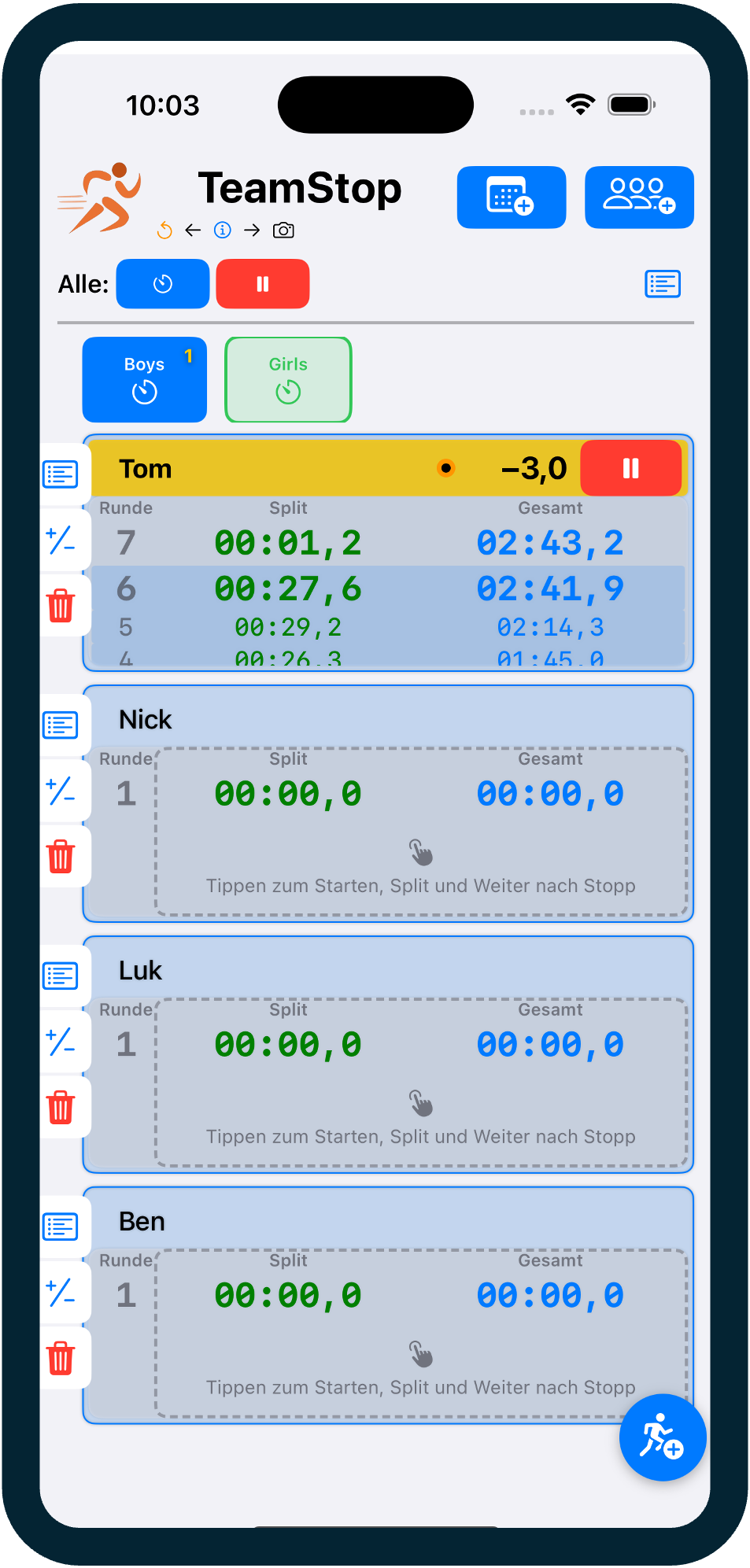
The main view is hierarchically structured: Header (app control) → Global Level (all timers) → Team Level (groups) → Athlete Level (individual stopwatches).
Header Level


Opens info page with QuickStart guide, features overview and app information.
Undoes the last action (e.g. accidentally taken lap).
Activates photo mode. A portrait button with live camera preview appears in top right corner. (Pro Feature)
Photo Capture:
• Tap on Live View button → Photo WITHOUT info (camera only, 12MP)
• Tap on timer area (Lap) → Photo WITH info overlay (athlete name, lap number, split time, total time)
• Tap on resize handle (bottom left) → Change size
• Swipe UP on button → Exit photo mode

Creates a new event.

Creates a new group.
Global Level (All Timers)




Starts all timers, takes a lap for running timers (Split), or resumes paused timers.


Stops all running timers or resets all stopped timers to 0.

Opens report for current event with save and export options, as well as links to saved events. (Pro Feature)
Team Level (Groups)

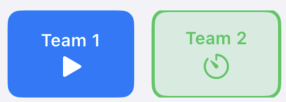
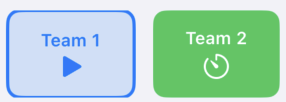
Switches to selected group. Shows only athletes of this group.
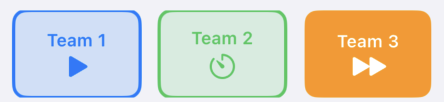
In team mode: Starts all timers of the group or takes a lap for all.
Opens team menu: Edit name and notes, Stop (stop all timers), Reset (reset all timers), Delete all (delete all timers).
Move groups via drag & drop.
Athlete Level (Individual Stopwatches)
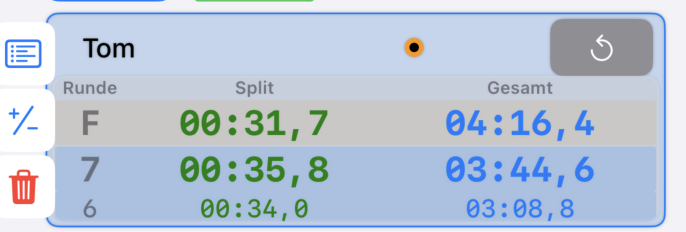

Creates a new timer/athlete in current group. Floating action button at bottom right.

Opens dialog to edit athlete name and notes.
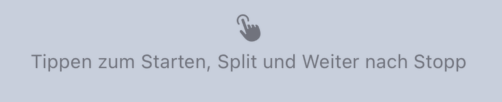
Starts the timer, takes a lap (Split) when running, or resumes paused timer. Tap on entire gray lap times area.

After each split the cumulative time difference to the target is shown for 5 seconds in the timer header. Black = ahead of pace, Red = behind pace. Also shown after the final split.
Pauses the running timer. Time is frozen.
Resets timer to 0. All lap times are deleted. Confirmation required.
Opens full-screen view with graph, all lap times, statistics (fastest/slowest lap, average) and export options (CSV, Clipboard, Share).

Opens target time settings with time picker, calculator (total time ÷ laps), competition mode and trainer location (track view). (Pro Feature)

Removes athlete/timer. All data is lost. Confirmation required.
Move athletes via drag & drop to another group. Hold the athlete and drag to another group tab.
Additional Controls Controls
Global Timer Action: Starts/Split/Resume all timers simultaneously.
Team Timer Action: Starts/Split/Resume all timers of the active group.
Function configurable in iOS Shortcuts app.